
Project settings holds all project data and configuration in one place. The screen is divided into three tabs: General, Sync, and Danger Zone. Changes are applied with the Save button at the top right.
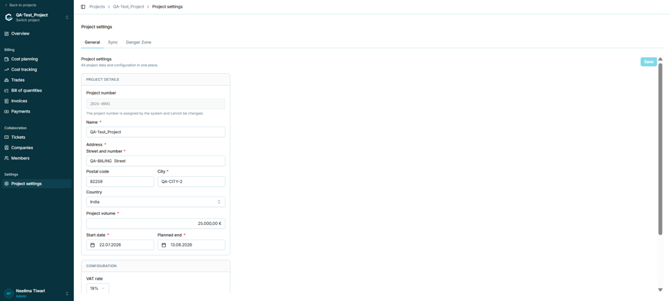
Figure 19 - Project settings, General tab
5.3.2 Project details|
Field |
Editable |
Notes |
|
Project number |
No |
Assigned by the system and cannot be changed. |
|
Name |
Yes |
Mandatory. |
|
Street and number |
Yes |
Mandatory. |
|
Postal code |
Yes |
Optional. |
|
City |
Yes |
Mandatory. |
|
Country |
Yes |
Optional, selected from a dropdown. |
|
Project volume |
Yes |
Mandatory. Displayed on the Overview as the target volume. |
|
Start date |
Yes |
Mandatory, dd.mm.yyyy. |
|
Planned end |
Yes |
Mandatory, dd.mm.yyyy. |
5.3.3 Configuration
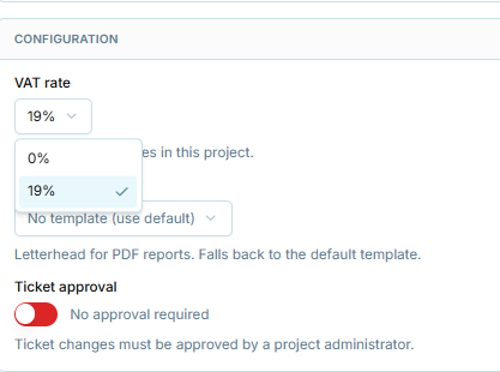
Figure 20 - The Configuration section of Project settings
|
Setting |
Options |
Effect |
|
VAT rate |
0% or 19% |
The VAT rate applied to invoices in this project, and the basis for every gross value shown in Cost planning and Cost tracking. |
|
Export template |
No template (use default), or a specific template |
Letterhead used for PDF reports. Falls back to the default template configured under Administration > Export Templates. |
|
Ticket approval |
Toggle |
When enabled, ticket changes must be approved by a project administrator. When disabled, no approval is required. |
Note: The VAT rate set here is what converts net values to gross throughout the financial screens. If a gross figure looks wrong, check this setting first.
5.3.4 Sync tabThe Sync tab controls the CAPMO synchronisation of a linked project. A status banner names the linked CAPMO project and confirms that the sync is active. Synchronisation is a manual pull: nothing changes in costeo until someone requests the latest data and reviews it.
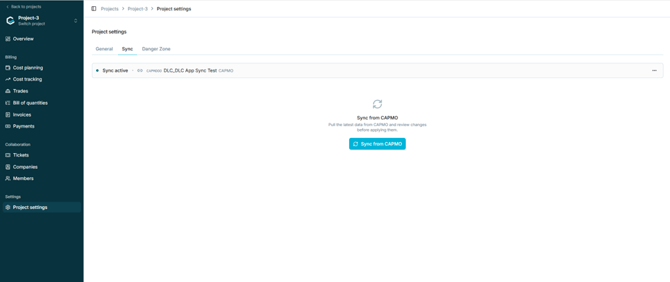
Figure 21 - The Sync tab of a linked project
- Open Project settings > Sync.
- Select Sync from CAPMO. costeo pulls the latest data from CAPMO and opens the review screen.
- Work through the review tabs - Project details, Companies, Users, Trades, Change orders, and Tickets - each showing the number of changes found.
- For each changed field, choose Keep local (the default) or Use CAPMO. Select all accepts every CAPMO value in the current tab at once.
- Select Apply to take over the accepted values. Re-sync pulls a fresh set of changes from CAPMO.
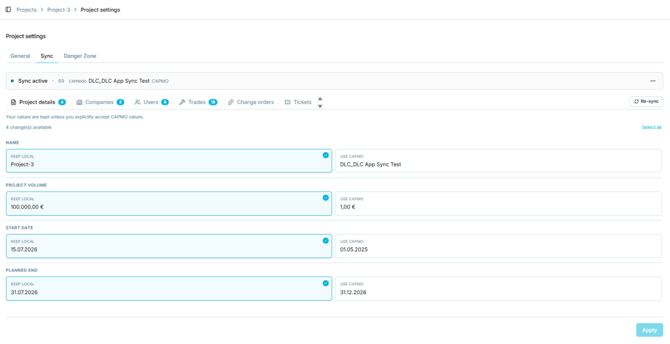
Figure 22 - Reviewing CAPMO changes field by field
Note: The review screen states the governing principle: your values are kept unless you explicitly accept the CAPMO values. costeo never overwrites project data silently - every adopted value is an explicit choice, made per field. In the example above, four project detail changes are offered (name, project volume, start date, planned end) and all four are set to Keep local.
Caution: Accepting a CAPMO value replaces the costeo value. Before selecting Use CAPMO on financial fields such as the project volume, confirm which system is authoritative for that field in your team - see the caution in section 4.4.3.
5.3.5 Danger ZoneThis tab contains irreversible project actions such as archiving or deletion. To be added in the next revision.