
The Permissions screen is where reusable access levels for project members are defined. See section 3.2 for how these presets relate to organisation roles.
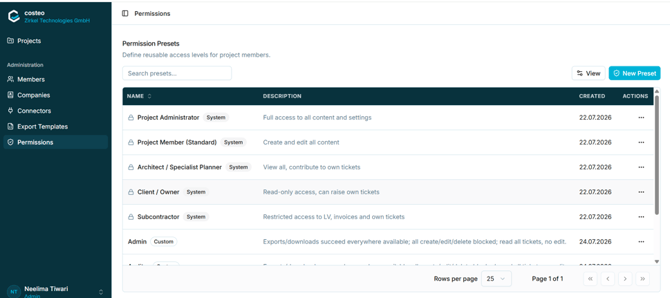
Figure 16 The Permission Presets list
Presets marked System are supplied with the application and are locked, indicated by a padlock icon. Presets marked Custom have been created within your organisation and can be edited.
Caution: The custom presets visible in Figure 16 are test records. Recapture this screen once the organisation’s real presets exist, so that the manual does not document test data as standard configuration.
4.6.2 Creating a permission preset- Open Administration > Permissions.
- Select New Preset. The New Permission Preset dialog opens.
- Enter a Name. This is mandatory. Add a Description so other administrators understand the intent of the preset.
- Optionally choose an existing preset under Start from to copy its settings as a starting point.
- Enable or disable individual permissions in the Permissions panel on the right.
- Select Save.
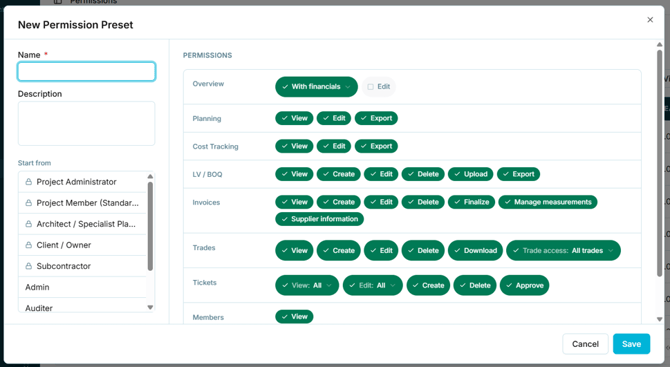
Figure 17 The New Permission Preset dialog
4.6.3 Available permissionsPermissions are grouped by functional area. The table below lists the options visible in the dialog.
|
Area |
Available permissions |
|
Overview |
With financials, Edit |
|
Planning |
View, Edit, Export |
|
Cost Tracking |
View, Edit, Export |
|
LV / BOQ |
View, Create, Edit, Delete, Upload, Export |
|
Invoices |
View, Create, Edit, Delete, Finalize, Manage measurements, Supplier information |
|
Trades |
View, Create, Edit, Delete, Download, Trade access (All trades or a selection) |
|
Tickets |
View (scope selectable), Edit (scope selectable), Create, Delete, Approve |
|
Members |
View |
Note: The project sidebar also contains Payments and Companies, which do not appear in the visible part of this list. See section 5.1.