
The payment calculation is stage 3 of the invoice workflow. It takes the verified invoice amount from measurement and applies the commercial terms configured on the trade - discount, retentions, securities, and cash discount - to arrive at the amount payable. It also serves as the invoice cover sheet for the subcontractor and can be exported as a PDF.
Note: This screen is reached from the Supplier info button on the measurement stage, and corresponds to what earlier documentation calls the supplier information sheet or subcontractor cover sheet.
5.10.2 Header and payment amounts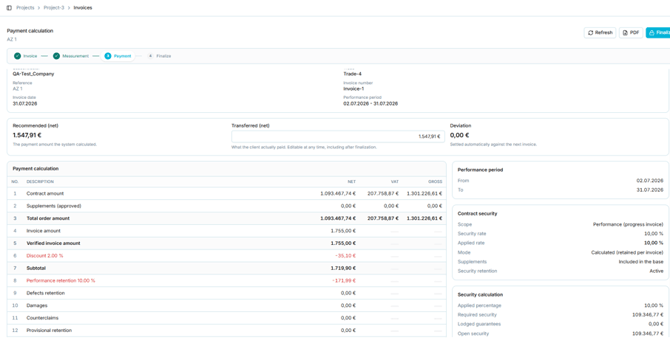
Figure 48 - The payment calculation
The header identifies the subcontractor, trade, reference (AZ number), invoice number, invoice date, and performance period. Controls are Refresh, PDF, and Finalize.
|
Card |
Meaning |
|
Recommended (net) |
The payment amount calculated by the system. |
|
Transferred (net) |
What the client actually paid. Editable at any time, including after finalisation. |
|
Deviation |
Difference between the recommended and transferred amounts. Settled automatically against the next invoice. |
Note: Before finalisation, Transferred is editable here. After finalisation it becomes read-only on this screen and is reconciled on the Payments screen instead - see sections 5.10.8 and 5.11. Either way, a payment discrepancy is corrected forward against the next invoice rather than by reopening a finalised invoice.
5.10.3 The calculation tableThe calculation is presented as a numbered sequence of lines, each with net, VAT, and gross columns. The lines observed are:
|
No. |
Line |
Notes |
|
1 |
Contract amount |
Awarded contract value. |
|
2 |
Supplements (approved) |
Approved supplements. |
|
3 |
Total order amount |
Contract amount plus approved supplements. |
|
4 |
Invoice amount |
Amount claimed on the invoice. |
|
5 |
Verified invoice amount |
Amount confirmed by measurement. |
|
6 |
Discount |
General discount from the trade, deducted. |
|
7 |
Subtotal |
Verified amount less discount. |
|
8 |
Performance retention |
Contract performance security, deducted. |
|
9 |
Defects retention |
Deducted where applicable. |
|
10 |
Damages |
Deducted where applicable. |
|
11 |
Counterclaims |
Deducted where applicable. |
|
12 |
Provisional retention |
Deducted where applicable. |
|
14 |
Correction |
Correction arising from measurement. |
|
15 |
Subtotal |
Running total after deductions. |
|
16 |
Previously released payments |
Cumulative amount actually transferred on earlier invoices, taken from the Payments screen — including any over- or underpayment. See section 5.11.5. |
|
17 |
Payment amount |
Amount payable before cash discount. |
|
18 |
Cash discount |
Skonto from the trade. |
|
19 |
Payment amount after cash discount |
Final amount payable, with the payable-by date. |
In the captured example the sequence resolved as follows:
|
Step |
Value |
|
Verified invoice amount |
1.755,00 € |
|
Less discount at 2% |
−35,10 € |
|
Subtotal |
1.719,90 € |
|
Less performance retention at 10% |
−171,99 € |
|
Recommended payment (net) |
1.547,91 € |
Caution: This worked example indicates that the performance retention is applied to the subtotal after the discount, rather than to the verified invoice amount. That reading is consistent with the captured figures but is inferred from a single example. Have the development team confirm the order of operations before it is stated as fact or used in training.
5.10.4 Contract securityA panel beside the calculation summarises how the security configured on the trade is being applied.
|
Field |
Meaning |
|
Scope |
Which invoice type the security applies to, for example performance on a progress invoice. |
|
Security rate |
Rate configured on the trade. |
|
Applied rate |
Rate actually applied to this invoice. |
|
Mode |
How the security is handled, for example calculated and retained per invoice. |
|
Supplements |
Whether supplements are included in the base for the calculation. |
|
Security retention |
Whether retention is active. |
A second panel shows the security calculation: the applied percentage, the required security, any lodged guarantees, and the resulting open security. Further down, the amount capped and withheld on this invoice is shown.
Note: This panel is where the Contract performance security settings from section 5.6.5 become visible in operation - including whether supplements are included in the base, which is the With amendments setting on the trade.
5.10.5 Invoice overviewThe Invoice overview panel compares, position by position, what was contracted, what was invoiced, and what was measured. Show all and Exceeding LV switch between all positions and only those exceeding the contracted quantity.
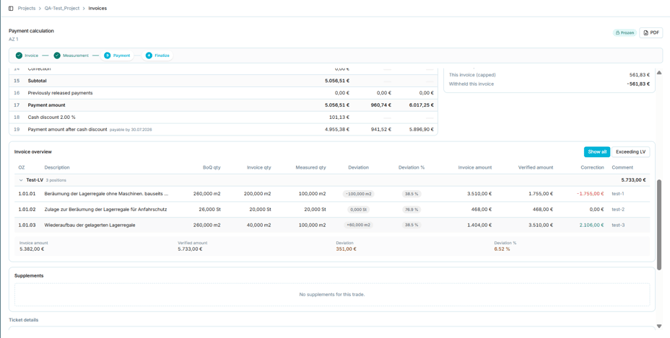
Figure 49 - The invoice overview and payment lines
|
Column |
Content |
|
OZ / Description |
Position identifier and description. |
|
BoQ qty |
Contracted quantity. |
|
Invoice qty |
Quantity claimed. |
|
Measured qty |
Quantity accepted at measurement. |
|
Deviation / Deviation % |
Difference between invoiced and measured quantity, as a quantity and a percentage. |
|
Invoice amount |
Value of the claimed quantity. |
|
Verified amount |
Value of the measured quantity. |
|
Correction |
Difference in value between the claimed and verified amounts. |
|
Comment |
Comment recorded during measurement. |
Totals for invoice amount, verified amount, deviation, and deviation percentage are shown beneath the positions. A supplements panel lists supplements for the trade, or states that there are none.
Note: A correction can be positive as well as negative. Where the measured quantity exceeds the invoiced quantity, the verified amount is higher than the invoice amount and the correction increases the payment.
5.10.6 Ticket detailsBeneath the invoice overview, deductions arising from tickets are listed by category, each with a ticket count and a value.
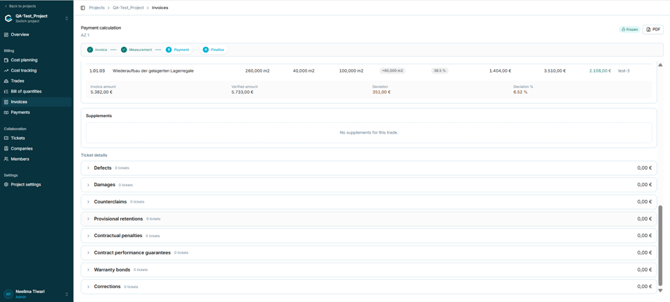
Figure 50 - Ticket details feeding the payment calculation
The categories observed are: Defects, Damages, Counterclaims, Provisional retentions, Contractual penalties, Contract performance guarantees, Warranty bonds, and Corrections. Each can be expanded to show the underlying tickets.
Note: This is the link between the Tickets module and billing. Several of these categories correspond directly to deduction lines in the calculation table, so a ticket raised against a trade becomes a deduction on that trade’s next payment.
Tickets are raised and categorised in the Tickets module; see section 5.12. Only tickets in Approved status are included in this calculation.
5.10.7 Finalising the invoiceFinalize completes the payment calculation and moves the invoice to stage 4. A confirmation dialog states what finalisation does.
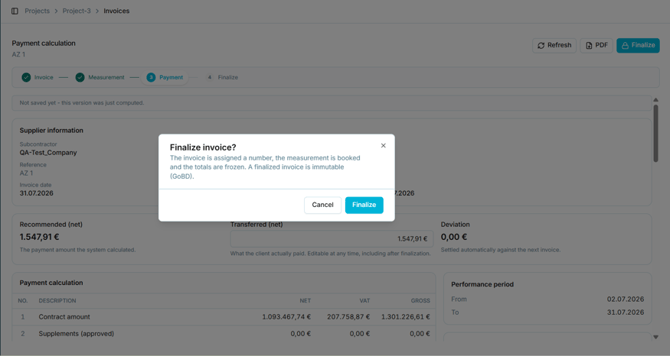
Figure 51 - The finalisation confirmation
|
Effect of finalising |
Meaning |
|
The invoice is assigned a number |
The invoice takes its permanent identifier. |
|
The measurement is booked |
Measured quantities are committed and feed the cumulative figures used elsewhere. |
|
The totals are frozen |
The calculated amounts can no longer change. |
|
The invoice is immutable (GoBD) |
Immutability is a legal requirement under the German GoBD principles for electronic bookkeeping, not merely an application setting. |
Caution: Finalisation cannot be undone by the user. Because immutability here is a compliance requirement rather than a convenience, do not describe it in training as something support can reverse. Confirm with the development team what, if anything, can be done about an invoice finalised in error.
Before finalisation the calculation shows a banner indicating that the displayed version has just been computed and not yet saved. Use Refresh to recompute, and PDF to export the cover sheet.
5.10.8 After finalisation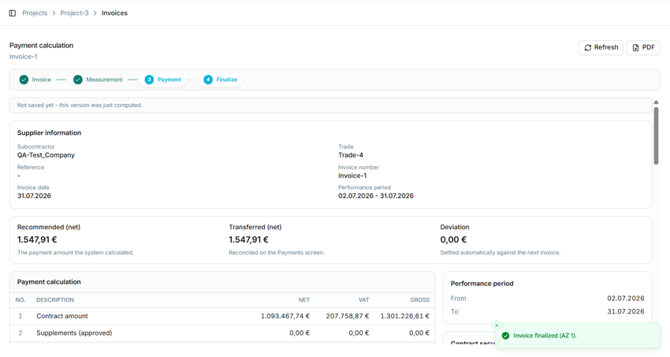
Figure 52 - The payment calculation after finalisation
Once the invoice is finalised:
- A confirmation message names the invoice and its AZ reference.
- Stage 4, Finalize, is marked complete in the workflow stepper.
- The Finalize control is removed from the header; Refresh and PDF remain.
- The Transferred amount is no longer editable on this screen. Its description changes to state that it is reconciled on the Payments screen.
Note: This is an important correction to how the Transferred field behaves. Before finalisation it is editable directly on the payment calculation. After finalisation the amount is still adjustable, but only through the Payments screen described in section 5.11. The ability to record what was actually paid is relocated, not removed.