
4.2.1 Purpose
The Members screen lists everyone in your organisation and is where new people are invited and existing roles are managed.
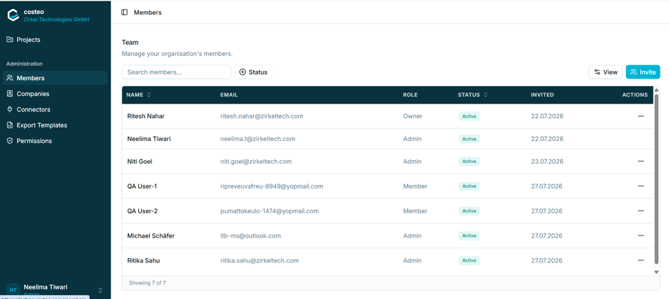
Figure 9 — The Members list
The list shows the member name, email address, organisation role, status, and the date the invitation was sent. Use Search members… to filter the list, Status to filter by member status, and View to adjust the displayed columns.
4.2.2 Inviting a member- Open Administration > Members.
- Select Invite. The Invite team member dialog opens.
- Enter the First name, Last name, and Email address. All three are mandatory.
- Select the Role. Member is selected by default; Admin is the other available option.
- Select Send invitation. The invitee receives an email containing an invitation link.
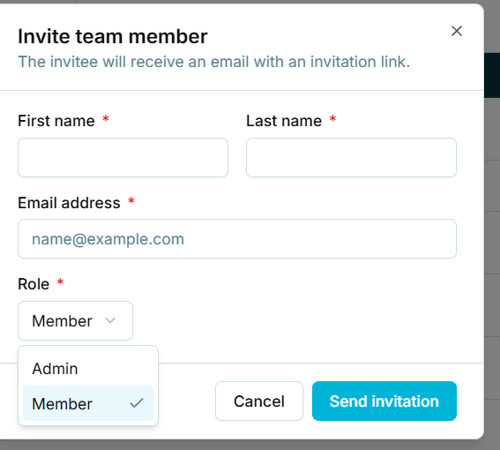
Figure 10 — The Invite team member dialog
Note: The Owner role is not available in this dialog. Only Admin and Member can be assigned when inviting someone.
4.2.3 Changing or removing a memberThis section will document the row Actions menu: changing a role, deactivating, and removing a member. To be added in the next revision.