
Connectors manage external integrations and their sync settings. A connector configured here becomes available for selection when a project is created.
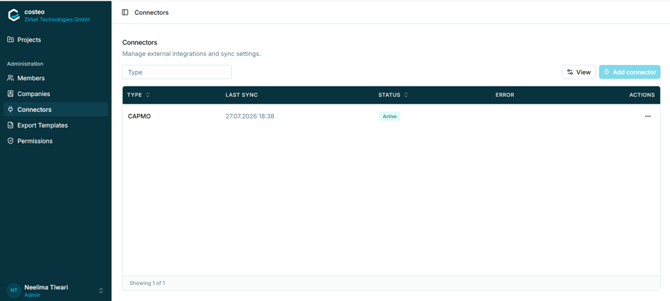
Figure 13 - The Connectors list, showing the CAPMO integration
|
Column |
Description |
|
Type |
The external system the connector links to, for example CAPMO. |
|
Last sync |
Date and time of the most recent synchronisation (dd.mm.yyyy hh:mm). |
|
Status |
Current connector state, for example Active. |
|
Error |
Populated when the last synchronisation failed. |
|
Actions |
Opens the row action menu. |
4.4.2 About CAPMO
CAPMO is a construction project management platform for the German-speaking (DACH) marketIt is used on the site side of a construction project: its ticket system coordinates tasks and defects between the project team and subcontractors, and it also provides construction schedules, a digital construction diary, plan and document management, and site documentation. Supplements (Nachträge) and the companies involved in a project are also managed there.
costeo and CAPMO therefore cover two halves of the same project. CAPMO holds what happens on site - who is involved, what has been agreed, what has gone wrong; costeo holds the commercial consequences - budgets, bills of quantities, invoices, measurement, retentions, and payment. The connector keeps the two aligned so that project data does not have to be maintained twice.
4.4.3 Where CAPMO appears in costeo|
Place in costeo |
Role of CAPMO there |
Reference |
|
Administration > Connectors |
The CAPMO connector is listed with its last sync time, status, and any sync error. |
Section 4.4.1 |
|
New project dialog |
A project can be linked to the CAPMO connector when it is created. Linked projects show a link icon in the Connector column of the Projects list. |
Section 4.1.5 |
|
Project settings > Sync |
Manual pull-and-review synchronisation for a linked project: changes are fetched from CAPMO and adopted field by field. |
Section 5.3.4 |
|
Companies |
Companies involved in the project can originate from CAPMO rather than being entered manually; the Source column indicates the origin of each record. |
Sections 4.3 and 5.13 |
|
Trades |
Earlier documentation describes trades (then called ticket categories) being imported from CAPMO. |
Section 5.6 |
|
Bill of quantities |
Earlier documentation describes supplements (Nachträge) created in CAPMO appearing in costeo once synchronised. |
Section 5.7.5 |
|
Tickets |
Earlier documentation describes cost-related tickets created in CAPMO being synchronised into the system. |
Section 5.12 |
Note: The sync review of section 5.3.4 shows tabs for Project details, Companies, Users, Trades, Change orders, and Tickets - confirming that these object types are carried by the synchronisation. Trades, supplements, and tickets can also be created directly in costeo, so for a linked project the team should agree which route is used for each.
Caution: For a linked project, agree within the team which system is authoritative for each object. If a supplement or company can be created in either system, creating it in both produces duplicates that the sync cannot reconcile.
4.4.4 Z-tickets: invoice-relevant data from CAPMOCAPMO uses a set of ticket types prefixed with Z- to carry invoice-relevant values into invoice verification. Their codes are German abbreviations, and they map directly onto the costeo ticket types described in section 5.12.3 - which is also why ticket numbers in costeo can carry these prefixes, such as ticket GF001 in Figure 50.
|
CAPMO code |
Meaning |
costeo ticket type |
|
Z-K+ |
Credit note corrections |
Corrections (credit) |
|
Z-K− |
Debit corrections |
Corrections (debit) |
|
Z-GB |
Warranty guarantees (Gewährleistung) |
Warranty bonds |
|
Z-VE |
Performance guarantees (Vertragserfüllung) |
Performance bonds |
|
Z-EB |
Preliminary retentions (Einbehalte) |
Provisional retentions |
|
Z-GF |
General counterclaims (Gegenforderungen) |
Counterclaims |
|
Z-MA |
Deficiencies (Mängel) |
Defects |
|
Z-SCH |
Damages (Schäden) |
Damages |
|
Z-VS |
Contract penalties (Vertragsstrafen) |
Contract penalties |
Note: This mapping is carried over from documentation of the earlier, CAPMO-centred workflow, in which these values were stated to be refreshed whenever the invoice summary for the subcontractor was generated. In the current version tickets can also be raised directly in costeo. Verify with the development team that the Z-mapping still applies to synchronised tickets.
4.4.5 Supplements and the synchronisation freezeEarlier documentation records an important consistency rule for supplements (Nachträge) arriving from CAPMO: changes made in CAPMO - to volume, files, or status - continue to flow into invoice verification only until the approved supplement positions have been uploaded as an LV and one of those positions has been included in an invoice. From that moment, CAPMO modifications are no longer adopted, so that billed data cannot change underneath a running invoice. If the CAPMO data then deviates from what costeo holds, a red CAPMO icon appears against the affected entry in the bill of quantities overview.
Caution: This rule was written for the earlier version, and the current version has moved to an explicit keep-local-or-use-CAPMO review (section 5.3.4), which overlaps with it. Verify on the current build whether the automatic freeze and the red deviation icon still exist, before either is relied on. Listed in Appendix A.
4.4.6 Adding a connectorAdd connector on the Connectors screen creates a new integration. According to the QA team, the dialog asks for the connector name and its API key.
4.4.7 Open pointsStill open in Appendix A: the exact set of objects synchronised in each direction beyond those visible in the review tabs, the procedure when the Error column is populated, whether the supplement freeze rule and red deviation icon of section 4.4.5 still apply, and the Add connector dialog itself.