
A bill of quantities (Leistungsverzeichnis, LV) is the structured document listing all services and tasks required for a trade, position by position. It is the basis for measurement and billing: a BoQ must exist for a trade before any invoice can be created against that trade.
Note: Earlier documentation calls this area Service Specifications and the document an LV. The current interface calls the area Bill of quantities and the document a BoQ. LV and BoQ are used interchangeably in the application - the BoQ editor still refers to building "the LV structure". Anyone working from the older document should also read "ticket category" as "trade".
5.7.2 The BoQ list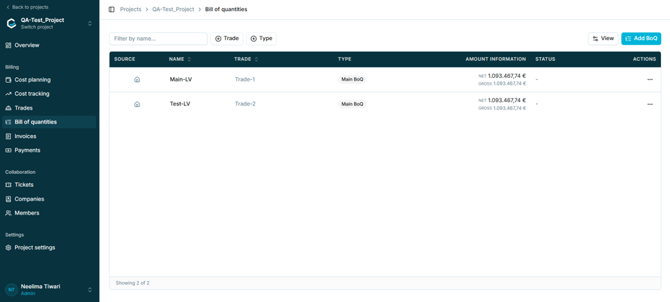
Figure 28 - The Bill of quantities list
|
Column |
Description |
|
Source |
Indicates where the record originated, shown as an icon. |
|
Name |
Name of the BoQ. |
|
Trade |
Trade the BoQ belongs to. |
|
Type |
Main BoQ or supplement. |
|
Amount information |
Total value of the BoQ, shown as NET and GROSS. |
|
Status |
Approval status. Populated for supplements; shown as a dash for main BoQs. |
|
Actions |
Opens the row action menu. See section 5.7.9. |
Use Filter by name… to search, and the Trade and Type filters to narrow the list. View adjusts the displayed columns.
5.7.3 Main BoQ and supplementsTwo types of BoQ exist within a trade:
|
Type |
Purpose |
Notes |
|
Main BoQ |
The primary bill of quantities for the trade. |
Required before any invoice can be created for the trade. One per trade. |
|
Supplement (Nachtrag) |
Additional scope agreed after the main BoQ, for example extra excavation. |
Carries a cost and an approval status. Does not replace the requirement for a main BoQ. |
Note: A supplement does not remove the need for a main BoQ. If only a supplement exists for a trade, invoicing for that trade is still blocked.
5.7.4 Creating a main BoQ- Open Bill of quantities within the project.
- Select Add BoQ. The Add BoQ dialog opens.
- Leave the Create as supplement toggle switched off.
- Select the Trade. This is mandatory and lists the trades defined for the project.
- Enter a Name. This is mandatory.
- Select Create. The BoQ is created empty; see section 5.7.6 for how to fill it.
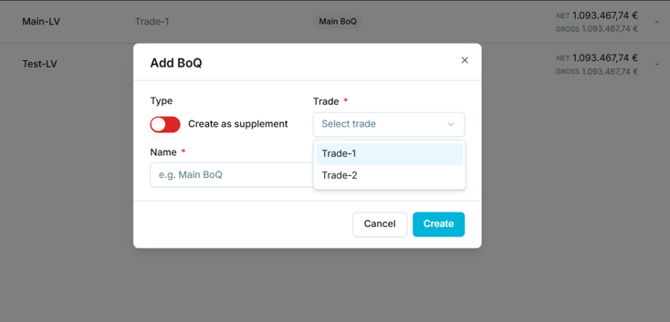
Figure 29 - The Add BoQ dialog, with the supplement toggle off
5.7.5 Creating a supplementSwitching Create as supplement on adds two further fields to the dialog.
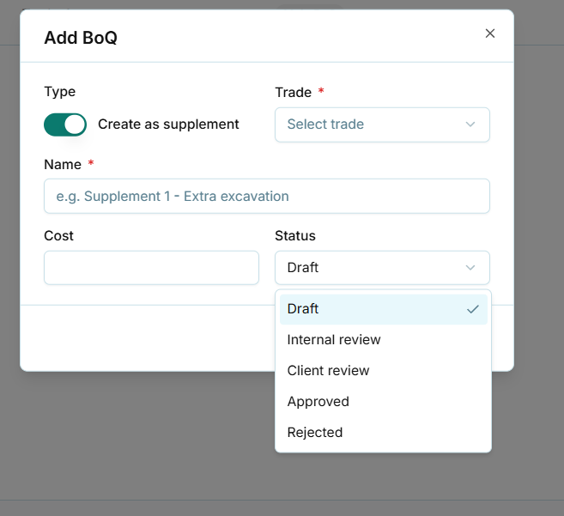
Figure 30 - The Add BoQ dialog, with the supplement toggle on
|
Field |
Mandatory |
Notes |
|
Trade |
Yes |
Trade the supplement belongs to. |
|
Name |
Yes |
Descriptive name, for example "Supplement 1 – Extra excavation". |
|
Cost |
No |
Value of the supplement. |
|
Status |
No |
Approval status. Defaults to Draft. |
The Status field offers the following values:
|
Status |
Meaning |
|
Draft |
Default. Not yet submitted for review. |
|
Internal review |
Under review within the organisation. |
|
Client review |
Submitted to the client for review. |
|
Approved |
Approved and available for use. |
|
Rejected |
Not approved. |
Note: Earlier documentation describes supplements being created in CAPMO and then appearing in costeo after a page refresh. The current interface allows a supplement to be created directly. Confirm whether both routes exist, and which is the intended process.
5.7.6 Filling a new BoQA newly created BoQ is empty. The application prompts for how it should be populated.
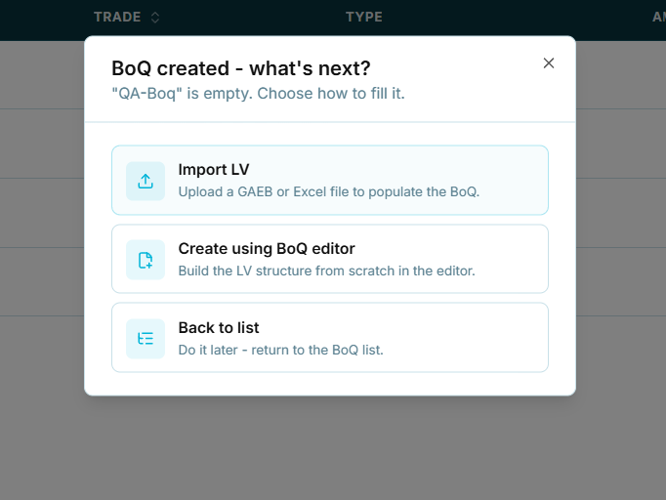
Figure 31 - Prompt shown after a BoQ is created
|
Option |
Effect |
|
Import LV |
Upload a GAEB or Excel file to populate the BoQ. |
|
Create using BoQ editor |
Build the LV structure from scratch in the editor. |
|
Back to list |
Return to the BoQ list and populate it later. |
The same two choices are offered again on opening an empty BoQ.
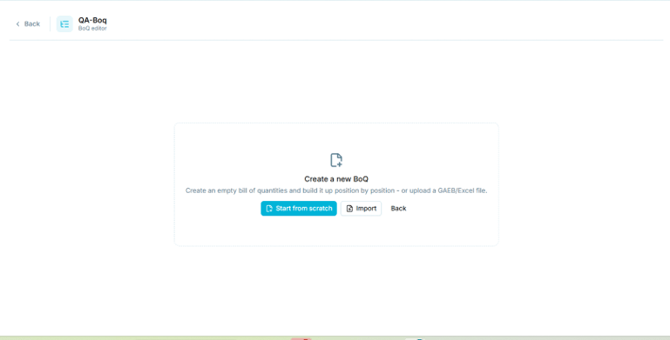
Figure 32 - The empty state of the BoQ editor
5.7.7 The BoQ editorThe editor allows a bill of quantities to be built up position by position.
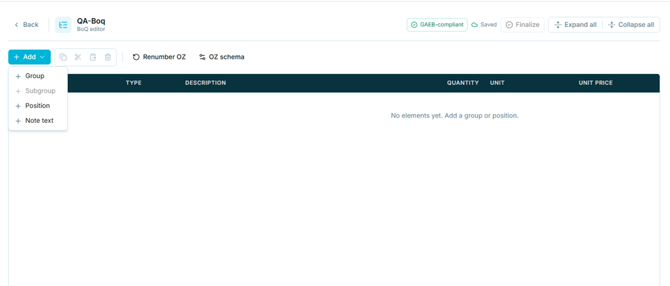
Figure 33 - The BoQ editor
5.7.8 Editor controls|
Control |
Purpose |
|
Add |
Inserts an element. Options are Group, Subgroup, Position, and Note text. Subgroup is unavailable until a group exists. |
|
Copy / cut / paste / delete |
Standard editing actions on the selected element. |
|
Renumber OZ |
Recalculates the position numbers (Ordnungszahlen) across the BoQ. |
|
OZ schema |
Defines the numbering scheme used for positions. |
|
GAEB-compliant |
Indicator confirming the current structure conforms to GAEB. |
|
Saved |
Indicates that changes have been saved. |
|
Finalize |
Finalises the BoQ. |
|
Expand all / Collapse all |
Opens or closes the whole structure. |
The editor table holds the following columns: OZ, Type, Description, Quantity, Unit, and Unit price. Where a BoQ is empty, the table prompts for a group or position to be added.
|
Element type |
Purpose |
|
Group |
Top-level structural heading. |
|
Subgroup |
Subdivision of a group. Available only once a group exists. |
|
Position |
An individual billable item, carrying quantity, unit, and unit price. |
|
Note text |
Explanatory text that is not billable. |
The following actions were documented for the earlier Service Specification page. They must be re-checked against the current Actions menu.
|
Action |
Availability |
Status |
|
View |
Preview the uploaded LV file. |
To be verified by QA |
|
Re-upload |
Upload a new version. Only possible if the BoQ has not been used in a finalised invoice. |
To be verified by QA |
|
Download Excel |
Download the BoQ in Excel format. |
To be verified by QA |
|
Download GAEB |
Download the BoQ in GAEB format. |
To be verified by QA |
|
Delete |
Main BoQ only, and only if it has not been used in a finalised invoice. Supplements cannot be deleted. |
To be verified by QA |
|
Rule |
Status |
|
A main BoQ must exist for a trade before an invoice can be created for that trade. |
To be verified by QA |
|
A trade must exist, with a contractor assigned, before a BoQ can be created against it. |
To be verified by QA |
|
Once a main BoQ exists for a trade, that trade is no longer offered when creating another main BoQ, preventing duplicates. |
To be verified by QA |
|
A supplement can only receive an LV file once it has been approved. |
To be verified by QA |
|
Supplements cannot be deleted. |
To be verified by QA |
|
A BoQ used in a finalised invoice cannot be re-uploaded or deleted. |
To be verified by QA |