
costeo uses a one-time sign-in code sent to your email address instead of a password. There is no password to create, remember, or reset.
- Open the costeo sign-in page in your browser.
- Enter your Email address - the same address the invitation was sent to - and select Send code.
- Open your inbox. You will receive a Login code email containing a 6-character code.
- Enter the code into the six boxes on the sign-in screen.
- Optionally tick Stay signed in to remain signed in on this device.
- Select Verify and sign in. The workspace opens on the Projects list.
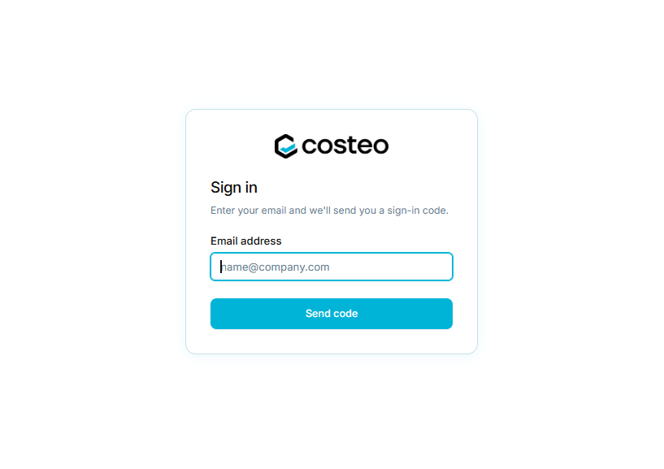
Figure 2 - The sign-in screen
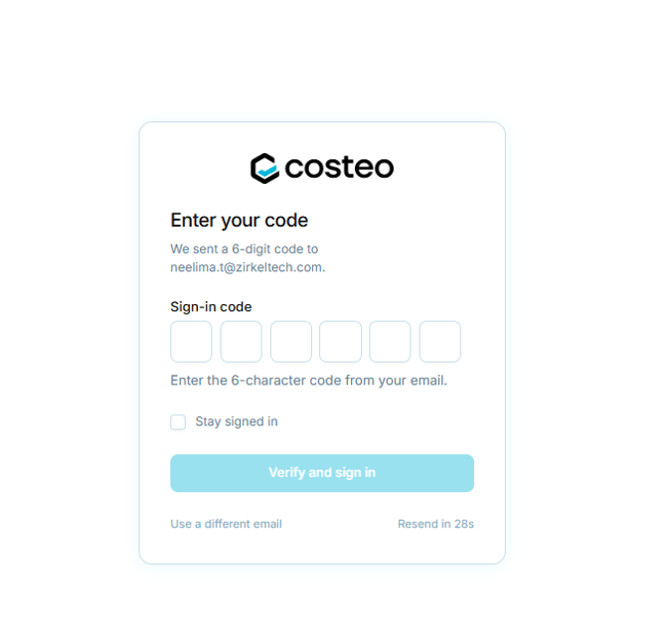
Figure 3 - Entering the sign-in code
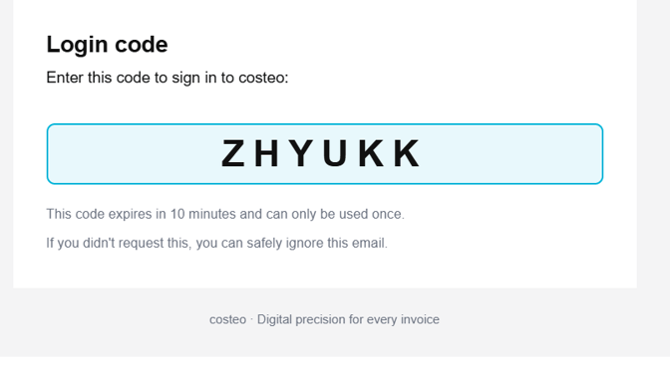
Figure 4 - The login code email
Rules for the sign-in code|
Rule |
Detail |
|
Validity |
The code expires 10 minutes after it is sent. |
|
Single use |
A code can only be used once. Request a new one for each sign-in. |
|
Resend |
A new code can be requested from the code screen after a short countdown. |
|
Wrong address |
Use a different email returns you to the address step. |
Note: Because there is no password, there is also no password reset. If you cannot sign in, the two things to check are that you are using the exact email address you were invited with, and that the code has not expired - request a fresh one if in doubt. If you were never invited, or your invitation has expired, an administrator must (re)send the invitation; no sign-in code will be issued to an unknown address.
Note: The code screen describes the code as a 6-digit code in one place and a 6-character code in another. The codes issued are alphanumeric (letters and digits), so 6-character is the accurate description. This wording inconsistency has been reported to the product team.