
The Projects screen lists every project in your workspace and is the entry point to all project work. It is also where new projects are created.
4.1.2 Viewing and filtering projectsThe list separates projects into three tabs - Active, Archived, and Deleted - and shows a count of the projects in your workspace above them.
|
Column |
Description |
|
No. |
System-generated project number in the format YYYY-NNNN (for example, 2026-0001). |
|
Name |
Project name, with the project city shown beneath it. |
|
Status |
Current project status, for example Active. |
|
Volume |
Project volume in euros, shown in German number format (1.234,56 €). |
|
Start |
Project start date (dd.mm.yyyy). |
|
Planned end |
Planned completion date (dd.mm.yyyy). |
|
Connector |
Shows a link icon when the project is linked to an external system; a dash when it is not. |
|
Actions |
Opens the row action menu. |
Use Search projects… to filter the list by name, and View to adjust which columns are displayed.
4.1.3 Creating a project- Open Projects from the sidebar.
- Select New project. The New project dialog opens.
- Complete the fields listed in section 4.1.4. Fields marked with a red asterisk are mandatory.
- Select Create project. The button stays inactive until all mandatory fields are filled.
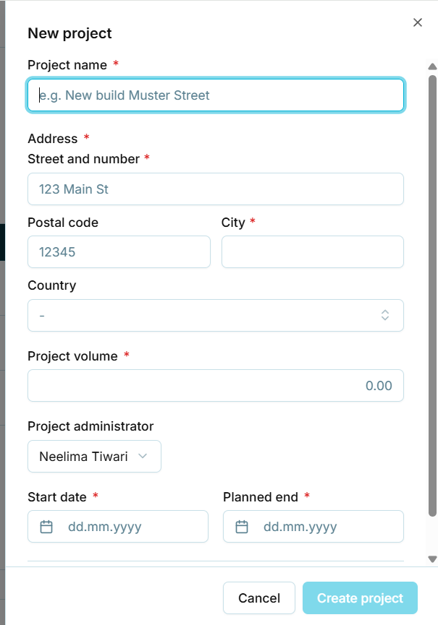
Figure 6 - The New project dialog
4.1.4 Field reference - New project|
Field |
Mandatory |
Format / notes |
|
Project name |
Yes |
Free text. Example placeholder: "New build Muster Street". |
|
Street and number |
Yes |
Free text. |
|
Postal code |
No |
Numeric, shown with a five-digit placeholder. |
|
City |
Yes |
Free text. |
|
Country |
No |
Selected from a dropdown list. |
|
Project volume |
Yes |
Numeric, two decimal places. Defaults to 0.00. |
|
Project administrator |
No |
Selected from a dropdown. Defaults to the user creating the project. |
|
Start date |
Yes |
Date, format dd.mm.yyyy. |
|
Planned end |
Yes |
Date, format dd.mm.yyyy. |
|
Connector |
No |
Optional link to an external system. See section 4.1.5. |
Note: Postal code is optional while City is mandatory. Confirm this is intended before publishing, as it is unusual for a German address.
4.1.5 Linking a project to CAPMOAt the bottom of the New project dialog, the Enable synchronisation toggle links the project to an external system. Switching it on reveals a mandatory Connector selection listing the connectors configured for the organisation.
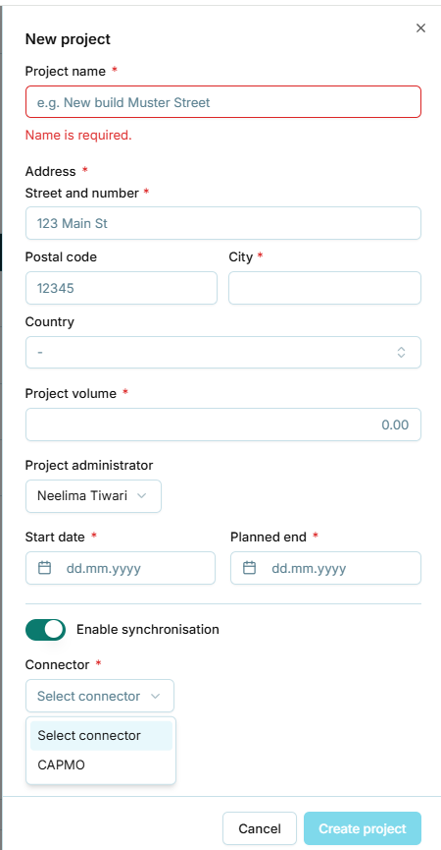
Figure 7 - Enabling synchronisation while creating a project
Once the CAPMO connector is selected, a second dropdown, Select CAPMO project, lists the projects available in the linked CAPMO account - each with its CAPMO project number and address - so the new costeo project can be tied to its counterpart. A No CAPMO project link option is available for creating the link without binding it to a specific CAPMO project.
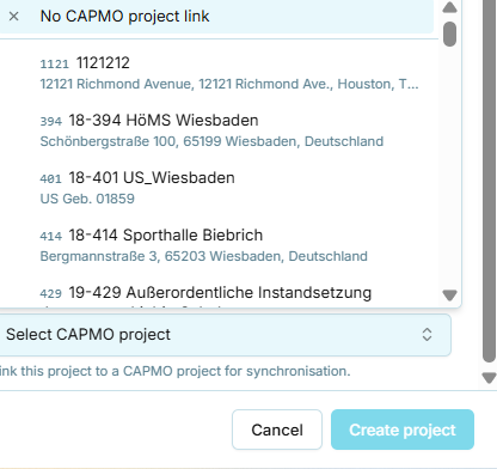
Figure 8 - Selecting the CAPMO project to synchronise with
Note: Linking is a decision at project creation. How the two projects then stay aligned - the manual pull-and-review sync - is controlled from Project settings > Sync; see section 5.3.4.