
Cost tracking gives a detailed view of the project’s financial status: the budget derived from the LV, awarded contracts, supplements, risks, and the amounts actually invoiced and measured. It is the main screen for monitoring progress and identifying deviations between planned and actual cost.
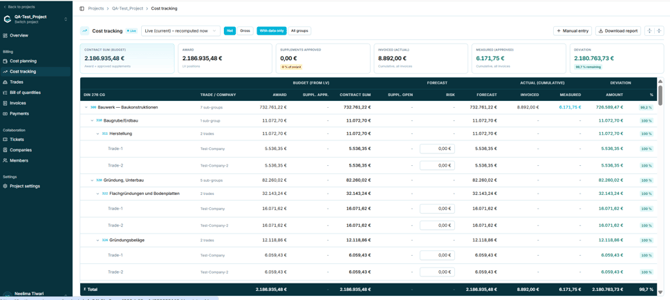
Figure 24 — Cost tracking
5.5.2 View controls|
Control |
Purpose |
|
Live indicator and snapshot selector |
Switches between the live figures, recomputed on opening, and a saved snapshot. |
|
Net / Gross |
Switches all figures between net and gross values. Gross uses the VAT rate from Project settings. |
|
With data only / All groups |
Hides or shows cost groups that contain no data. |
|
Manual entry |
Opens the Add manual entry dialog for costs outside the LV. See section 5.5.6. |
|
Download report |
Exports the full cost tracking data for reporting or analysis. |
|
Expand all / Collapse all |
Opens or closes every DIN 276 cost group at once. |
|
Card |
Definition shown on screen |
|
Contract sum (budget) |
Award plus approved supplements. |
|
Award |
Value of the LV positions — the contractually awarded amount before any changes. |
|
Supplements approved |
Approved supplements, with their share of the award. |
|
Invoiced (actual) |
Cumulative amount invoiced across all invoices. |
|
Measured (approved) |
Cumulative approved measurement value across all invoices. |
|
Deviation |
Remaining amount, with the percentage remaining. |
Note: Invoiced and Measured are different figures and will not usually match. Invoiced is the value raised on invoices; Measured is the value of work verified on site through measurement documents, and is what invoices are validated against. Confirm which of the two the Overview "Billed" card reflects, since in the captured data it matched the Measured value rather than the Invoiced value.
5.5.4 The tracking tableRows follow the DIN 276 cost group hierarchy and expand down to individual trades, each showing the assigned company. Where no contractor is assigned, the company is not shown. Columns are grouped as follows:
|
Group |
Columns |
Meaning |
|
Budget (from LV) |
Award, Suppl. appr., Contract sum |
The awarded value, approved supplements, and the resulting total contractual obligation. |
|
Forecast |
Suppl. open, Risk, Forecast |
Supplements not yet approved, estimated financial risk, and the resulting projected final cost. |
|
Actual (cumulative) |
Invoiced, Measured |
What has actually been invoiced, and what has been verified by measurement. |
|
Deviation |
Amount, % |
Difference between budget and actuals, as an amount and a percentage. |
The following relationships are stated in the interface itself and can be relied on:
|
Figure |
Basis |
Source |
|
Contract sum |
Award + approved supplements |
Stated on the summary card and in the manual entry dialog |
|
Forecast |
Contract sum + risk |
Stated in the manual entry dialog |
Caution: The Deviation column is the one figure that must be confirmed with the development team before this manual is issued. Earlier documentation defines the difference as invoiced minus award, but that does not reproduce the value shown in the captured data, which is consistent instead with contract sum minus measured. Do not publish either formula until it has been verified. See Appendix B.
Risk is entered directly in the table for each trade. A Total row is fixed at the bottom and consolidates every column across the project.
5.5.6 Adding a manual entryManual entries capture costs that sit outside the LV — for example architect or engineer fees, permits, and insurance — or cost data that cannot be imported automatically. They are entered directly and merged into the totals of the chosen cost group alongside LV-derived costs.
- Open Cost tracking within the project.
- Select Manual entry. The Add manual entry dialog opens.
- Select the Cost group (DIN 276). This is mandatory.
- Optionally enter a Company.
- Enter the net values for Award, Supplement, Risk, Invoiced, and Measured. All five are mandatory.
- Optionally add Notes.
- Check the two running calculations shown above the buttons, then select Save entry.
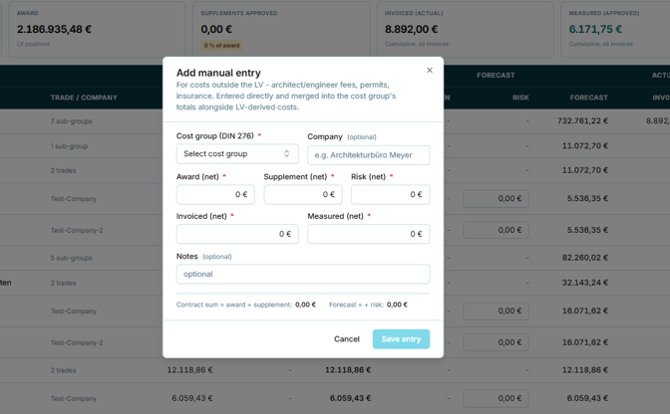
Figure 25 — The Add manual entry dialog
Note: The dialog displays contract sum as award plus supplement, and forecast including risk, updating as values are entered. These are the same relationships used throughout Cost tracking, so the dialog is a reliable place to sanity-check an entry before saving.